purpose

Retrofitting the connection for alarm and external control ZB

qualification

qualified personnel

Material

Pos.Designationarticlenumber
01X25/X26 cable, 0.26 mT28732-11
02M3x12-Torx screwB19834072
03M3 hexagonal nutB18746592
04cable 'ZB', 6 mT24562-11
05nameplateT192773

Required material

  • Torx screwdriver, size 20
  • Ring spanner, size 5.5

procedure

ATTENTION!

Working with the unit requires knowledge of the safety instructions and quick guide. That's why:

Read the safety instructions and quick guide carefully before starting any work. The basic requirement for safe work is compliance with all safety instructions and careful action by qualified qualified personnel to prevent accidents involving personal injury and property damage.
cooling and turn off

  • On the basic screen, tap the function button ().
    → The unit cools down until the temperature is lower than the cooling temperature. The unit then switches off.

  • Switch off the main switch (QS 1), pull out the mains-connector.

Open front

  • Open the front door and fold the front completely down by loosening the two Torx screws.
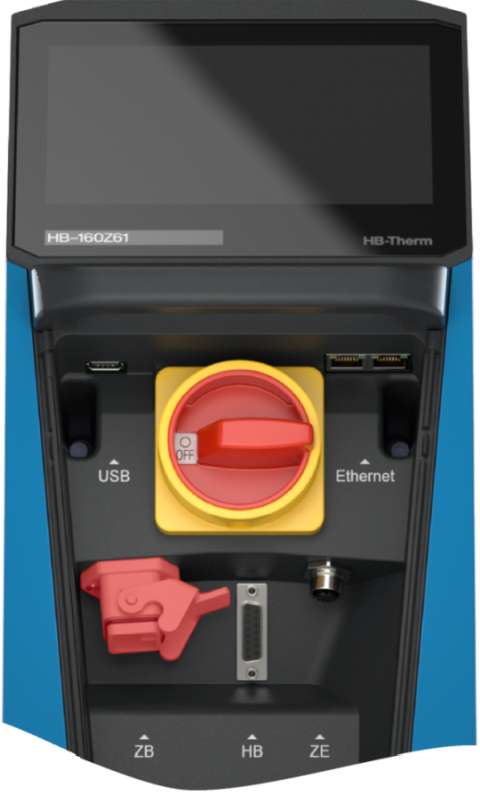
  • Remove the blind plug at the appropriate connection of the additional equipment 'ZB'.
    • Blind plugs are no longer required.

Retrofit

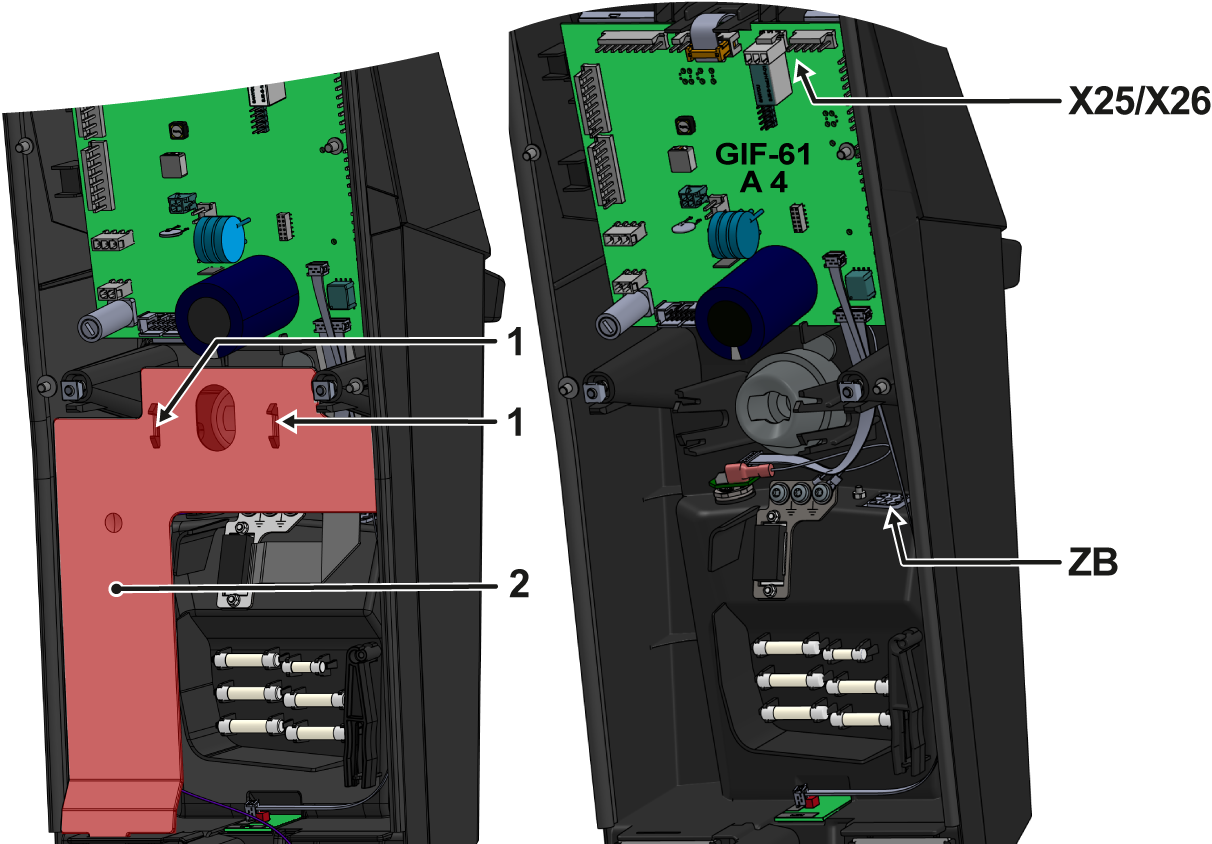
  • Press the mounting straps () together and remove the cable cover (②).
  • Pass the X25/X26 cable through the opening, ZB, in the front and screw it tight.
    • Insert the outer screw first, then the inner screw and then tighten with the mounting nuts.
  • Route the X25/X26 cable to the GIF-61 unit board and connect.
    • 5-pin plug → X25 slot
    • 3-pin connector → X26 slot
  • Insert the cable cover (②) into the appropriate recesses.
    • Make sure that the mounting clips (①) are locked in place.

Close front

  • Fold up the front and secure 2x Torx screws.

Check function

  • Connect the mains-connector and switch on the main switch (QS 1).
    • The device initialization starts and automatically recognizes the additional equipment 'ZB'
  • Check whether the additional equipment was recognized during device initialization. Tapping on the status field () opens the information system. The information system displays general device information and available additional equipment.
    • If this is not the case, check all plug connections again and restart the unit.

Switch off

  • Switch off the main switch (QS 1).