The documentation can be saved as a PDF file using the export function () at the top of each page.
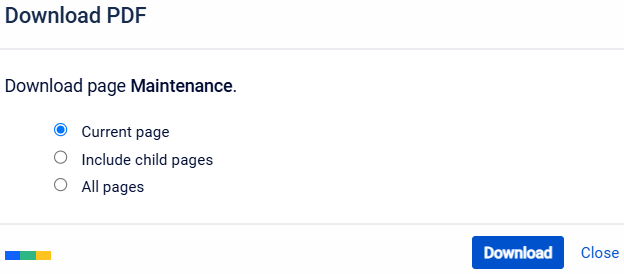
export options
Current page
Creates a PDF file of the currently displayed page.
Include child pages
Create a PDF file of the displayed page, including all subpages.
All pages
Create a PDF file of all instructions or documentation
NOTE!
Exporting the entire instructions (All pages)can take several minutes (up to 10 minutes).
How to create a PDF
Select the desired language (①) and variant (②) in the header of the knowledge website
Open the page that you want to export (if you only want to save individual pages as a PDF file).
Click on the export symbol () at the top of the page.The available export options are shown:
Select the desired export option.
Click “Download.” The PDF file is created and downloaded automatically.
This creates your own PDF documentation, which can also be used offline if required.
Datenschutz - Data protection - Protection de données
Wir setzen Cookies ein, um Ihnen die Nutzung unserer Webseite zu erleichtern. Weitere Informationen zu Cookies finden Sie in unserer Datenschutzerklärung. We use cookies to help you use our website. More information about cookies can be found in our privacy policy. Notre site utilise des cookies afin de vous garantir un service optimal. En utilisant ce site web, vous acceptez les présentes conditions. Vous trouverez privacy policy de plus amples informations. Privacy Policy



 This creates your own PDF documentation, which can also be used offline if required.